Set up PeyGrid on your PC
Watch the install video · Persian narration
PeyGrid rents out the idle time of your PC's graphics card and pays you in USDT on the Polygon network for the graphics processing it contributes. This guide covers PeyGrid Setup, the installer version: it puts an icon next to the clock and has its own window.
- Windows 10 or 11, 64-bit
- NVIDIA or AMD graphics card
- Paid in USDT on Polygon
What you need
- Windows 10 or 11 (64-bit), connected to the internet. PeyGrid only makes outgoing connections: there is nothing to set up on your router.
- A graphics card: NVIDIA (RTX 30 series or newer recommended) or AMD. The paid work runs on the graphics card.
- An up-to-date graphics driver from NVIDIA or AMD.
- A wallet address on the Polygon network, starting with
0x(for example from MetaMask or Trust Wallet). You can start without one: your earnings are kept on your account, and you need the wallet to withdraw them. You can add it later in the app.
Download
On the PeyGrid website press Download PeyGrid Setup. Your browser saves the installer, usually in the Downloads folder.
If a friend or a reseller sent you a download link, use that link. The file is then named like PeyGrid-Setup-1.3.47_ref-name.exe, and the installer fills in their name as your referral by itself. Keep the file name as it is.
The Windows warning
PeyGrid is new and not yet signed by a certificate authority, so Windows may show "Windows protected your PC". Click More info, then Run anyway. Your browser or antivirus may also ask whether to keep the file: choose Keep.
Install
- Double-click the installer you downloaded.
- Startup: leave Start PeyGrid Worker when Windows starts ticked, so the PC earns whenever it is on. Press Next.
- Your PeyGrid account: choose one option and press Next.
- Create a new account (sign up): your first PC with PeyGrid.
- I already have an account (sign in): you already use PeyGrid on another PC.
- Keep this PC's current account (recommended): shown only when PeyGrid was installed on this PC before.
- Fill in the account page (see the next two sections), press Next, then Install.
- At the end leave Start PeyGrid Worker now ticked and press Finish. The PeyGrid window opens.
If PeyGrid cannot be reached during the installation, the installer finishes anyway and the app asks for your account when it starts.
Create an account (sign up)
- Username
- Filled in from the PC's name; change it if you like. 3 to 32 characters: lowercase English letters, digits and
._-. It must be unique in PeyGrid and cannot start with0x. If it is taken, choose another. - Password
- At least 6 characters, and not the same as the username. Type it twice. It protects the PeyGrid window on all your PCs, so keep it somewhere safe.
- Wallet address
- Optional. Your Polygon wallet (
0x…), needed to withdraw your earnings; you can add it later in the app. A wallet belongs to one user only: if yours is already registered, choose sign in instead. - Referral
- Optional. The username or wallet of whoever invited you; a download link from them fills it in. Leave it empty if nobody invited you.
Sign in on another PC
Enter your Username and Password. Wallet is optional; if you enter it, it must be your account's wallet. The PC then works for your account.
If this PC already belongs to another PeyGrid user, the installer asks for that user's password (Move this PC). Without it, press Back to keep the current account: only the owner's password or the PeyGrid admin moves a PC. A PC that joined through a reseller stays in that reseller's network; to move it elsewhere, ask the PeyGrid admin.
Account screens in the app
If you skipped the account during installation, or PeyGrid could not be reached, the PeyGrid window shows Account setup when it opens. It has two tabs, Create account and Sign in, which ask the same things as the installer. The PC earns meanwhile: what it has earned moves to your account when you create it or sign in.
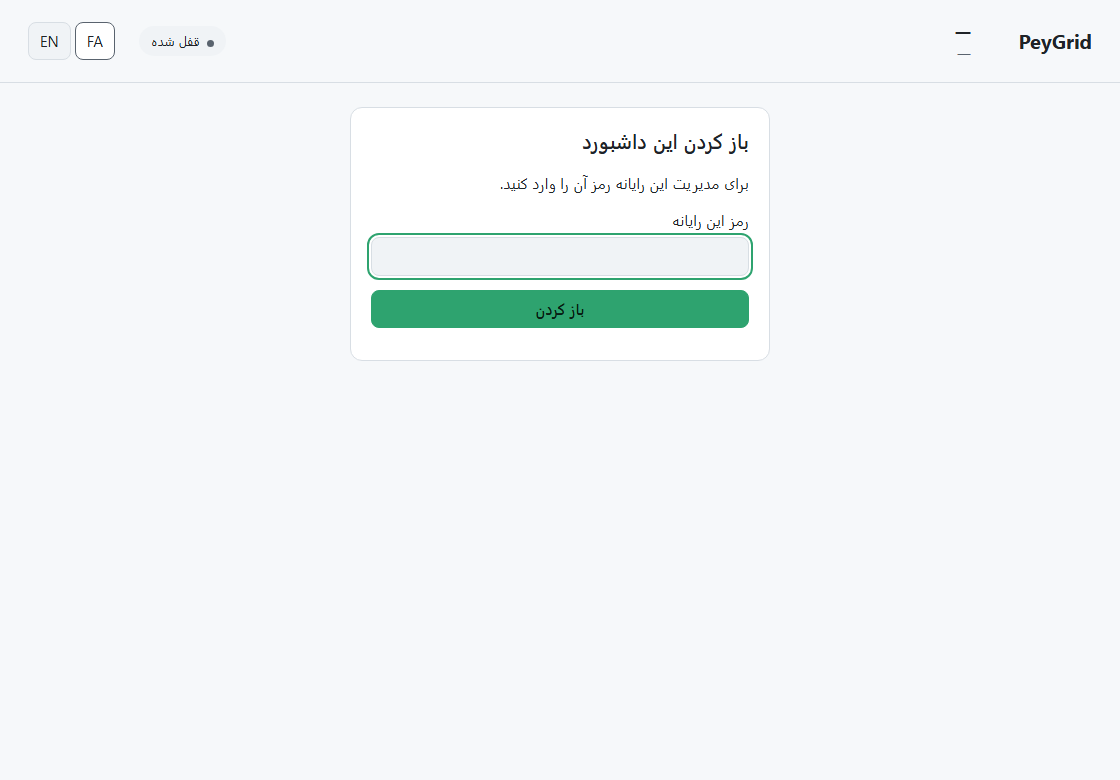
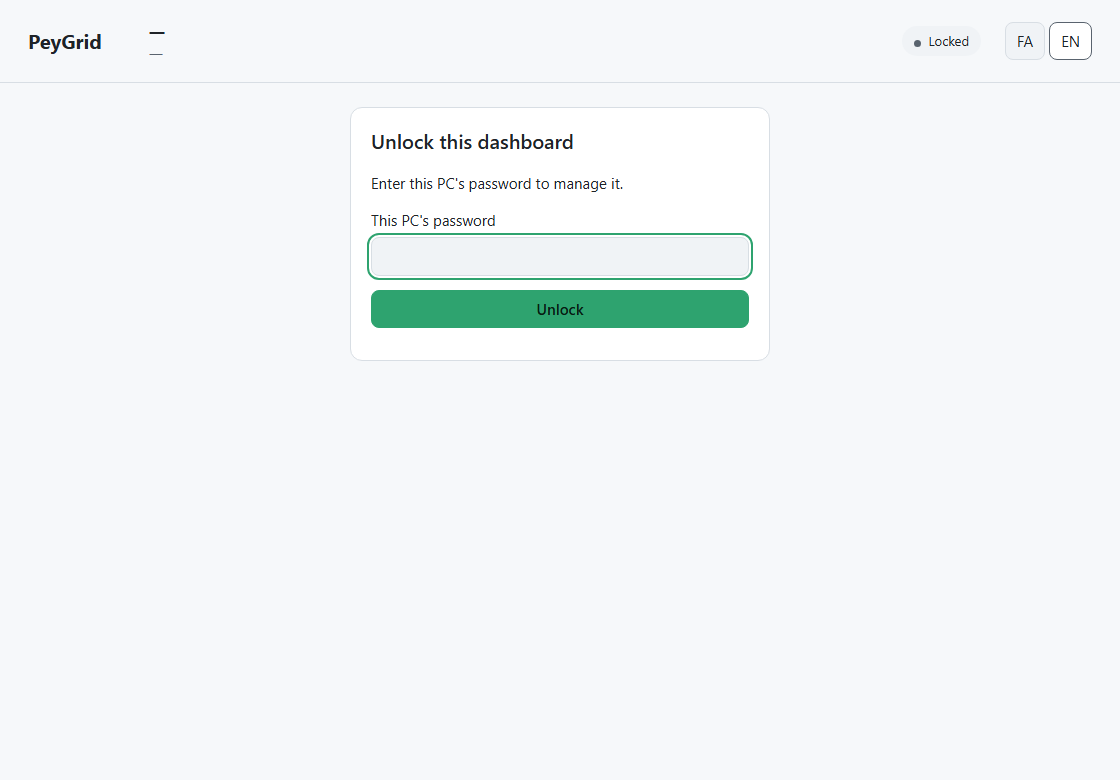
From then on the window is locked whenever you open it: enter your account password to unlock it.
Get paid: add your wallet
A user without a wallet is a guest: the PC earns all the same, and its balance is kept on your account until you add a wallet. To withdraw it, unlock the PeyGrid window and, in the account section, choose Set my wallet: enter your Polygon wallet (0x…) and your password. From then on your balance, and everything your PCs earn, can be withdrawn to that wallet.
A wallet belongs to one user. Once it is set, only the PeyGrid admin can change it.
Several PCs
Install PeyGrid Setup on each PC and choose I already have an account (sign in) with the same username and password. All the PCs earn for the same account: one balance, one wallet, and the window on each PC shows them all. You never need a second account for a second PC.
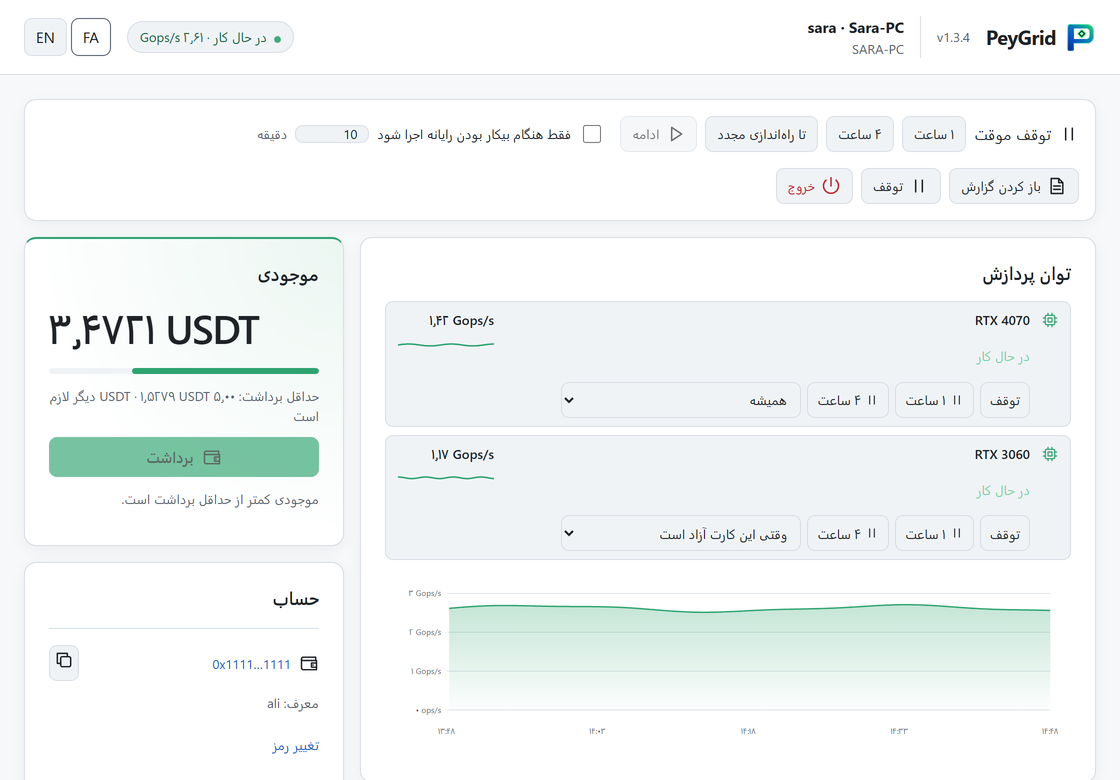
The PeyGrid window
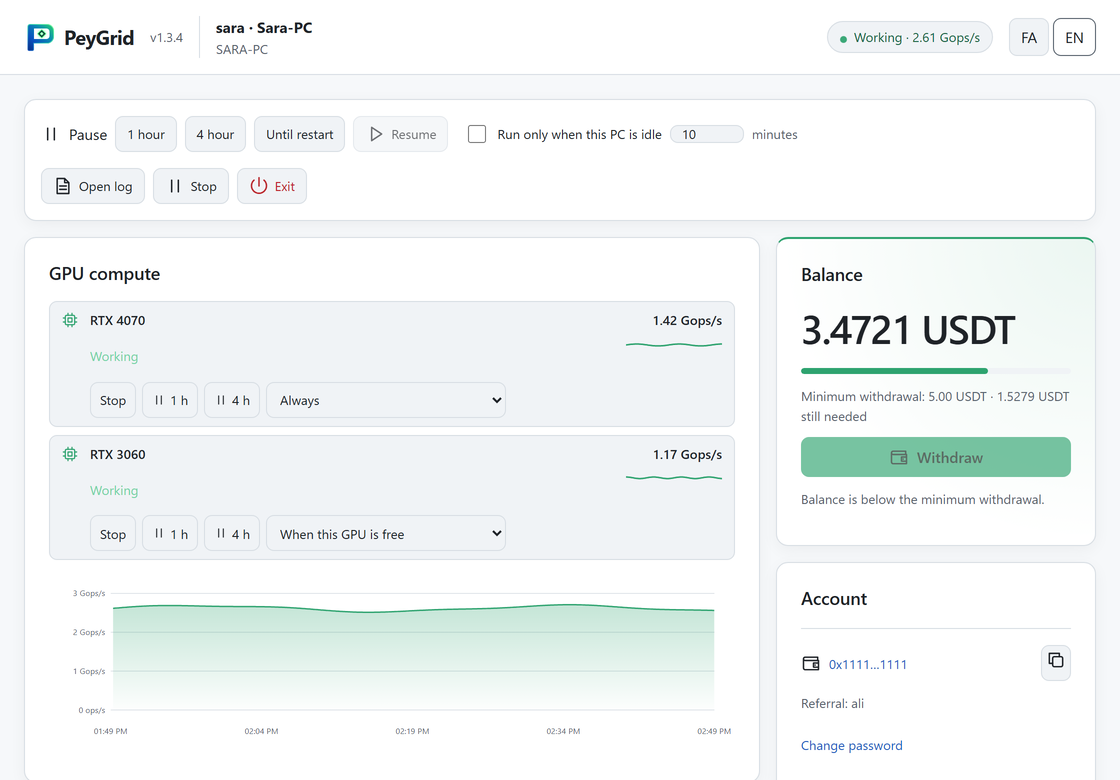
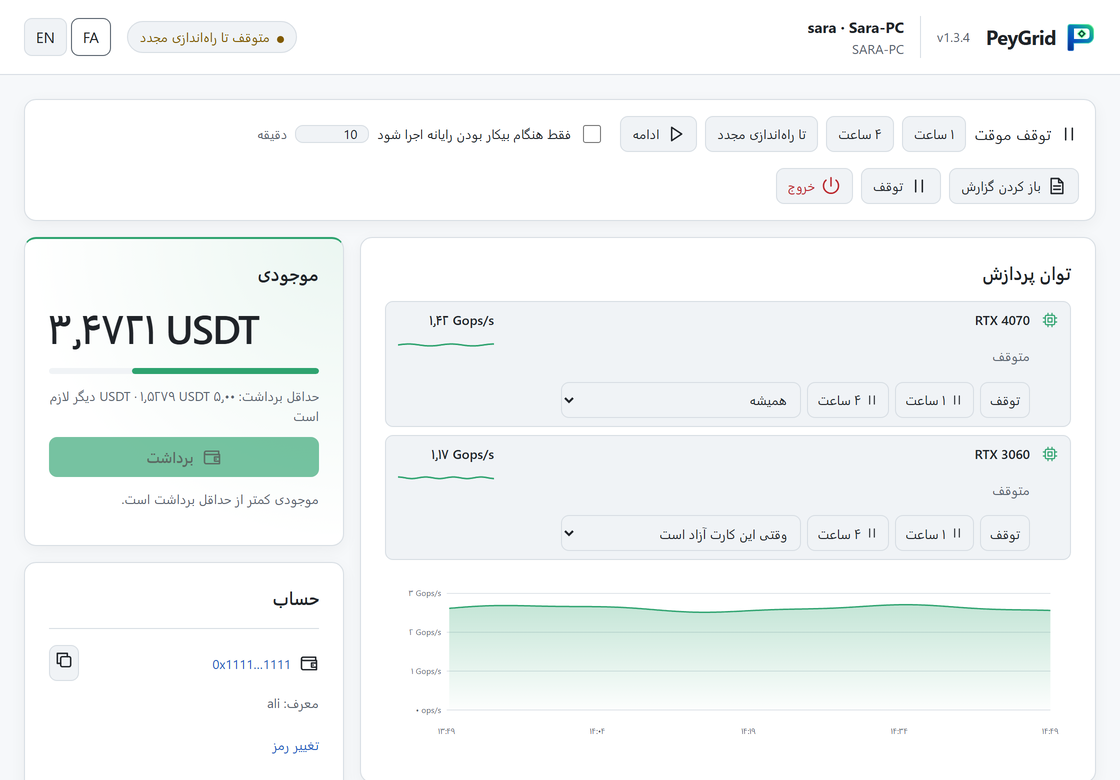
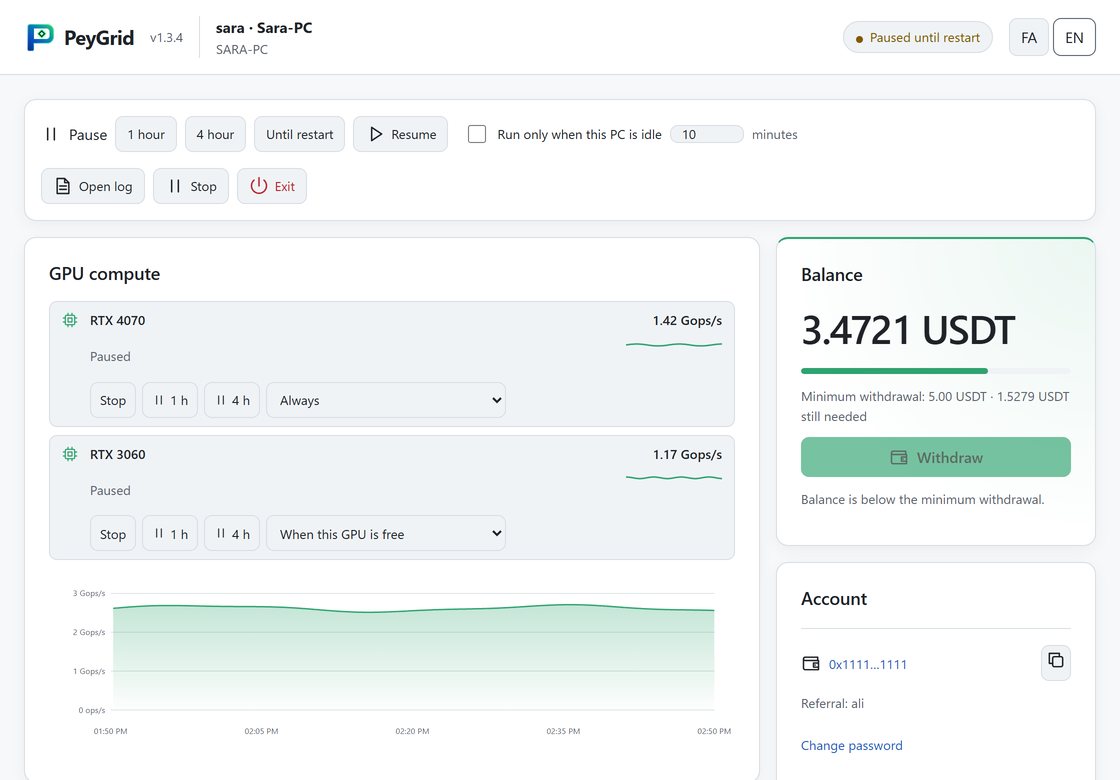
- Top: your username, the PC's name and its state (Working, Paused, Stopped) with the current speed.
- GPU compute: the speed of the last hour. The program keeps it, so it is still there after you close and reopen the window.
- Balance: what you have earned and not withdrawn yet, the minimum withdrawal and how much is still missing.
- Wallet and Reseller: where you are paid and, if you joined through a reseller, its name.
- Earnings: a chart for 24 hours, 7, 30 or 90 days, in USDT or in verified work (Tops), for all your PCs or one of them.
- Payouts: each withdrawal with a link to its transaction.
Pause, idle-only, stop, exit

- Pause for 1 hour, 4 hours or until the PC restarts; Resume continues at once.
- Run only when this PC is idle: PeyGrid works only after nobody has used the keyboard or mouse for the given minutes, and gives the PC back as soon as you return. Good for a PC you use during the day.
- Stop: stops the work but keeps the program running, so it can be started again from the window. Asks for your password.
- Exit: closes the program until the next Windows start, or until you open PeyGrid again. Asks for your password.
- Open log: what the program is doing, if someone helping you asks for it.
The icon by the clock (it may be under the small arrow): right-click it. Open opens the window; Stop and Exit open the window and ask for your password.
Withdraw
When your balance reaches the minimum, the Withdraw button becomes active. Press it: the amount is sent in USDT on Polygon to your wallet, usually within minutes, and appears under Payouts. Withdrawals are made only from the PeyGrid app on one of your own PCs, never from a website. If the button stays inactive, the reason is shown under it.
Password and forgot password
- Change password (account section): your current password and the new one. It changes on all your PCs.
- Forgot password? on the unlock screen: enter your username, your wallet and a new password twice. This works only on a PC that is already signed in to your account, and only when the account has a wallet. Otherwise ask the PeyGrid admin to reset it.
- Sign out other PCs: offered after a password change or reset. Your other PCs then have to sign in again; use it if someone else may know your old password.
Uninstall
Windows Settings → Apps → PeyGrid Worker → Uninstall. Your earnings stay with your account: install again later, choose I already have an account (sign in), and you continue where you left off.
Problems
- Speed stays at 0 or the graphics card is not used: update the graphics driver and restart the PC.
- "This username is taken": choose another username.
- "This wallet already belongs to a PeyGrid user": sign in with that user instead of creating a new one.
- "This PC belongs to user …": enter that user's password, or keep the current account.
- "This window lost PeyGrid Worker": the program restarted, for example after an update. Close the window and open PeyGrid again from its icon.
- PeyGrid unreachable: check the internet connection; the program keeps trying by itself.
- Anything else: contact your reseller or the PeyGrid admin.